


Phase 4: Activity & Tasks
Track everything you've submitted, manage your live products, and action the requests assigned to you — all from the Activity History and Supplier Tasks areas.
1. The Activity History Page
Open Activity History from the left menu to review everything you've submitted. Choose a module to see its submission history and action items:
- Supplier Registration — onboarding status, missing documents, and account approvals.
- Catalogue Uploads — product setups, approvals, and AI extraction queries.
- Digital Assets — ZIP uploads, image mappings, and asset approvals.
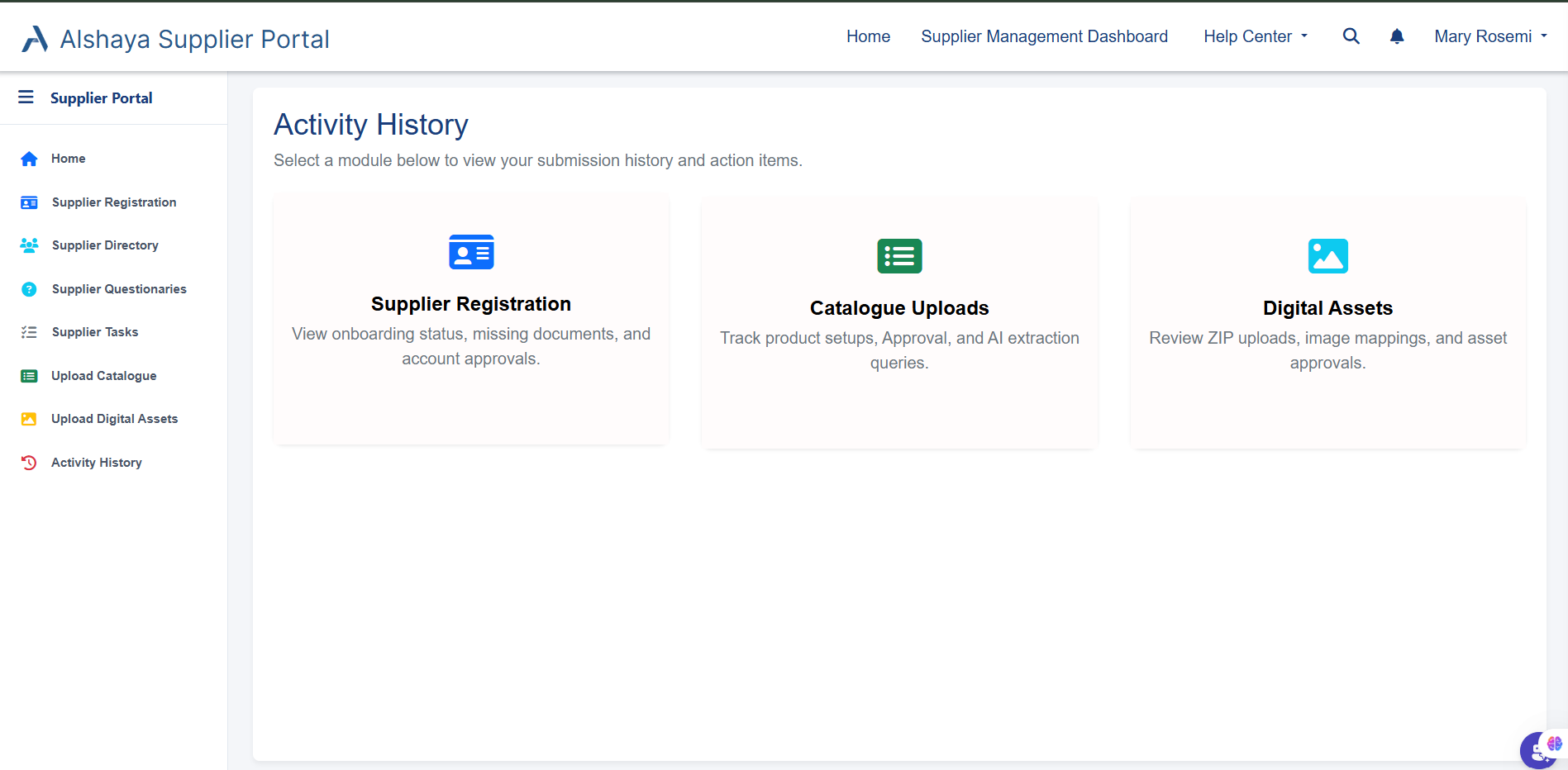
Fig 1: The Activity History page
2. Catalogue Activity Tabs
Opening Catalogue Uploads takes you to Catalogue Activity, organised into four tabs:
My Uploads
Batches you've uploaded and their current processing state.
Action Required
Items that need your attention before they can move forward.
Pending Approval
Products submitted and awaiting QA / SCM review.
Supplier Catalogue
Your fully approved, active product catalogue.
To add more products, use New Catalogue Upload — see Phase 2: Catalogue Upload.
3. Managing Your Live Products
Open the Supplier Catalogue tab to see your approved, active products. Each row has an actions menu (the arrow on the right) with three options:
- Modify Item — update the details of an existing article.
- Price Change Request — request a change to an article's purchase price.
- Deactivate Articles — remove an article from your active catalogue.
Modify an article
Use Modify Item to correct or update an active article. Your change is submitted for review before it goes live.
Watch: Modify article guide
How to update an existing article and submit the change.
Request a price change
Use Price Change Request to propose a new purchase price for an article. The request is routed for approval before the price is updated.
Watch: Purchase price change guide
How to raise a price change request and track its approval.
Deactivate an article
Use Deactivate Articles to remove a product from your active catalogue when it's no longer supplied.
Watch: Article deactivation guide
How to deactivate an article and what happens next.
4. Supplier Tasks (Task Action Center)
Some steps need your sign-off. Open Supplier Tasks from the left menu to reach the Task Action Center, which lists the requests assigned to you.
- Pending Tasks — requests awaiting your review. Click Take Action to review and approve.
- Approved Tasks — requests you've already actioned.
Use the search bar to find a specific request. Each task shows its subject, the related article, supplier ID, approval status, and dates so you can prioritise what to action first.
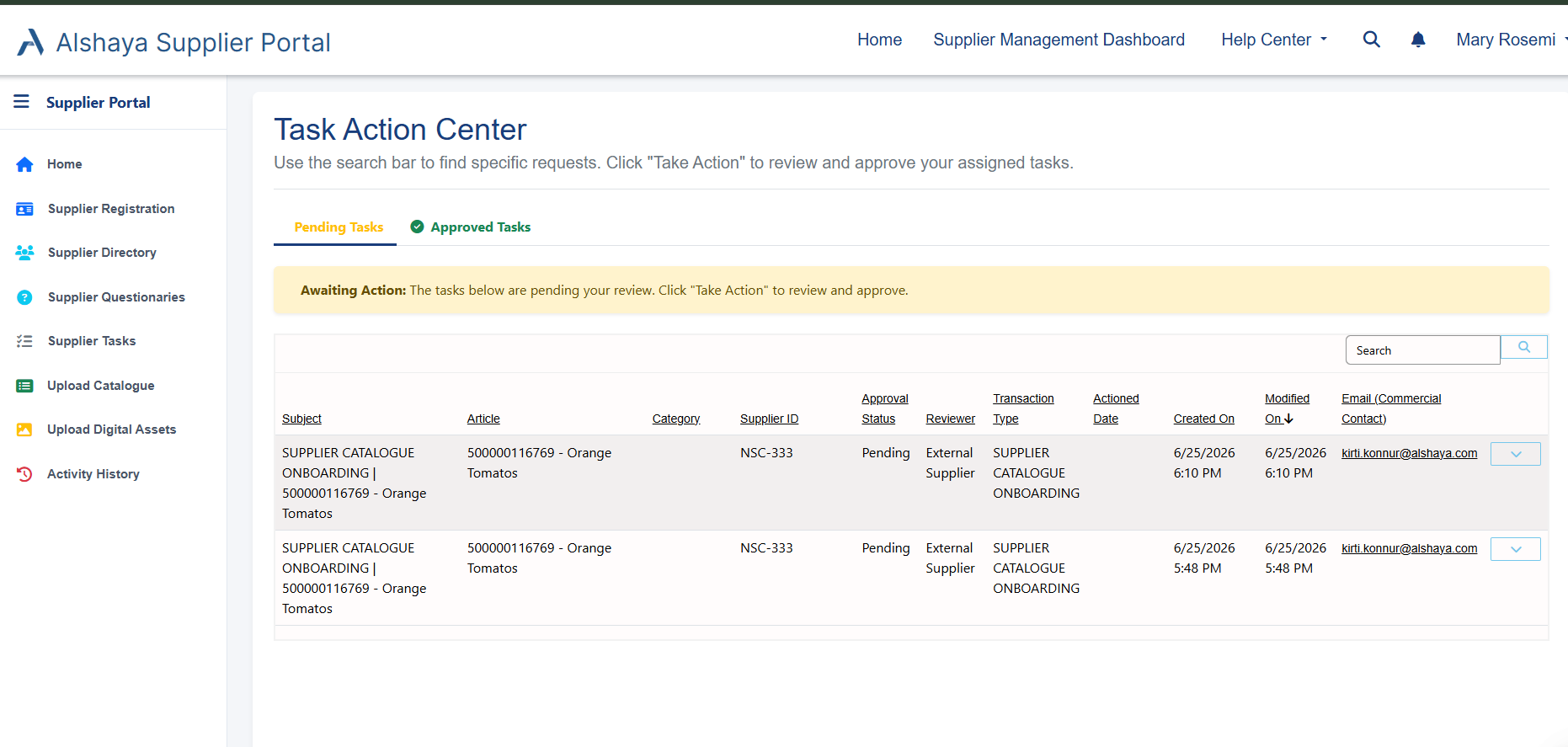
Fig 2: The Task Action Center — pending tasks awaiting action